Nissan Consult 3 Download Stuck at 0: Causes, Fixes, and Helpful Tips
Downloading vehicle diagnostic software should be a smooth process, but many users face a frustrating problem where Nissan Consult 3 download gets stuck at 0%. This issue is common among technicians, workshop owners, and Nissan vehicle enthusiasts who rely on Consult 3 for diagnostics and programming.
When the download does not move from zero, it can feel confusing and time-wasting. The good news is that this problem usually has clear causes and workable solutions. In this article, we will explain what Nissan Consult 3 is, why the download may get stuck at 0, and how you can fix the issue step by step.
What Is Nissan Consult 3?
Nissan Consult 3 is an official diagnostic and programming software used for Nissan and Infiniti vehicles. It allows users to scan vehicle systems, read error codes, reset warning lights, and perform advanced programming tasks.
This software is mainly used by dealerships and professional workshops, but some independent technicians also use it. Because Consult 3 works closely with vehicle systems, it needs proper installation and a stable setup to function correctly.
Why Nissan Consult 3 Download Gets Stuck at 0
When the download does not start or remains at 0%, it usually means something is blocking the process. The issue may be related to your internet connection, computer settings, software source, or system compatibility. Understanding the reason helps you fix the problem faster.
1. Unstable or Slow Internet Connection
One of the most common reasons the Nissan Consult 3 download gets stuck at 0 is a poor internet connection. If the connection is slow, unstable, or frequently disconnects, the download may not even begin.
Large software files require a steady internet connection. Even small interruptions can cause the download to freeze before it starts.
2. Firewall or Antivirus Blocking the Download
Firewalls and antivirus programs are designed to protect your computer. However, sometimes they block safe software by mistake. Nissan Consult 3 files may be flagged as unknown or suspicious, especially if they are downloaded from non-official sources.
When this happens, the download may stop at 0% without showing a clear error message.
3. Incompatible Operating System
Nissan Consult 3 does not work properly on all versions of Windows. If your operating system is not compatible, the installer or downloader may fail to start.
Many users face issues when trying to install Consult 3 on newer or unsupported Windows versions without proper setup.
4. Corrupted or Incomplete Download Files
If you previously tried downloading Nissan Consult 3 and the process failed, leftover corrupted files may remain on your system. These files can interfere with new download attempts and cause the progress to stay at 0%.
5. Insufficient Disk Space
If your computer does not have enough free storage, the download may not begin at all. Some systems require space even before the first download percentage appears.
6. Server or Source Issues
Sometimes the problem is not on your side. If the server hosting the Nissan Consult 3 files is overloaded or temporarily unavailable, the download may not start. This often happens with unofficial or shared download links.
How to Fix Nissan Consult 3 Download Stuck at 0
Now that you know the possible causes, let’s look at practical solutions you can try. Follow these steps one by one for the best results.
1. Check Your Internet Connection
Start by testing your internet speed and stability. Try opening other websites or downloading a different file. If your internet is slow or disconnecting, restart your modem or router.
Using a wired connection instead of Wi-Fi can also improve stability during large downloads.
2. Temporarily Disable Antivirus and Firewall
Before downloading Nissan Consult 3, temporarily turn off your antivirus and firewall. This allows the download to start without interference.
Once the download is complete, you can turn your security software back on. Make sure you trust the source of the software before doing this.
3. Run the Downloader as Administrator
Right-click on the download or setup file and select “Run as administrator.” This gives the software permission to access system resources and can fix issues where the download does not start.
4. Delete Old or Corrupted Files
If you have attempted the download before, locate and delete any old Consult 3 folders or partial files on your system. Restart your computer and then try downloading again from a clean state.
5. Check Available Disk Space
Make sure your system drive has enough free space. Nissan Consult 3 requires space not only for the download but also for installation and temporary files. Clearing unnecessary files can help.
6. Verify Operating System Compatibility
Confirm that your Windows version is compatible with Nissan Consult 3. In some cases, using compatibility mode helps. You can right-click the installer, go to properties, and select an older Windows version under compatibility settings.
7. Use a Reliable Download Source
Always try to download Nissan Consult 3 from an official or trusted source. Unstable or broken links often cause downloads to freeze at 0%. Reliable sources are more likely to provide complete and properly hosted files.
Common Mistakes to Avoid During Download
Many users repeat the same mistakes when dealing with Nissan Consult 3 download issues. Avoiding these can save time and frustration.
One common mistake is repeatedly restarting the download without fixing the main issue, such as antivirus blocking or poor internet. Another mistake is installing multiple versions of Consult 3 on the same system, which can cause conflicts.
Ignoring system requirements is also a major problem. Even a small mismatch can prevent the download from starting.
Tips for a Smooth Installation After Download
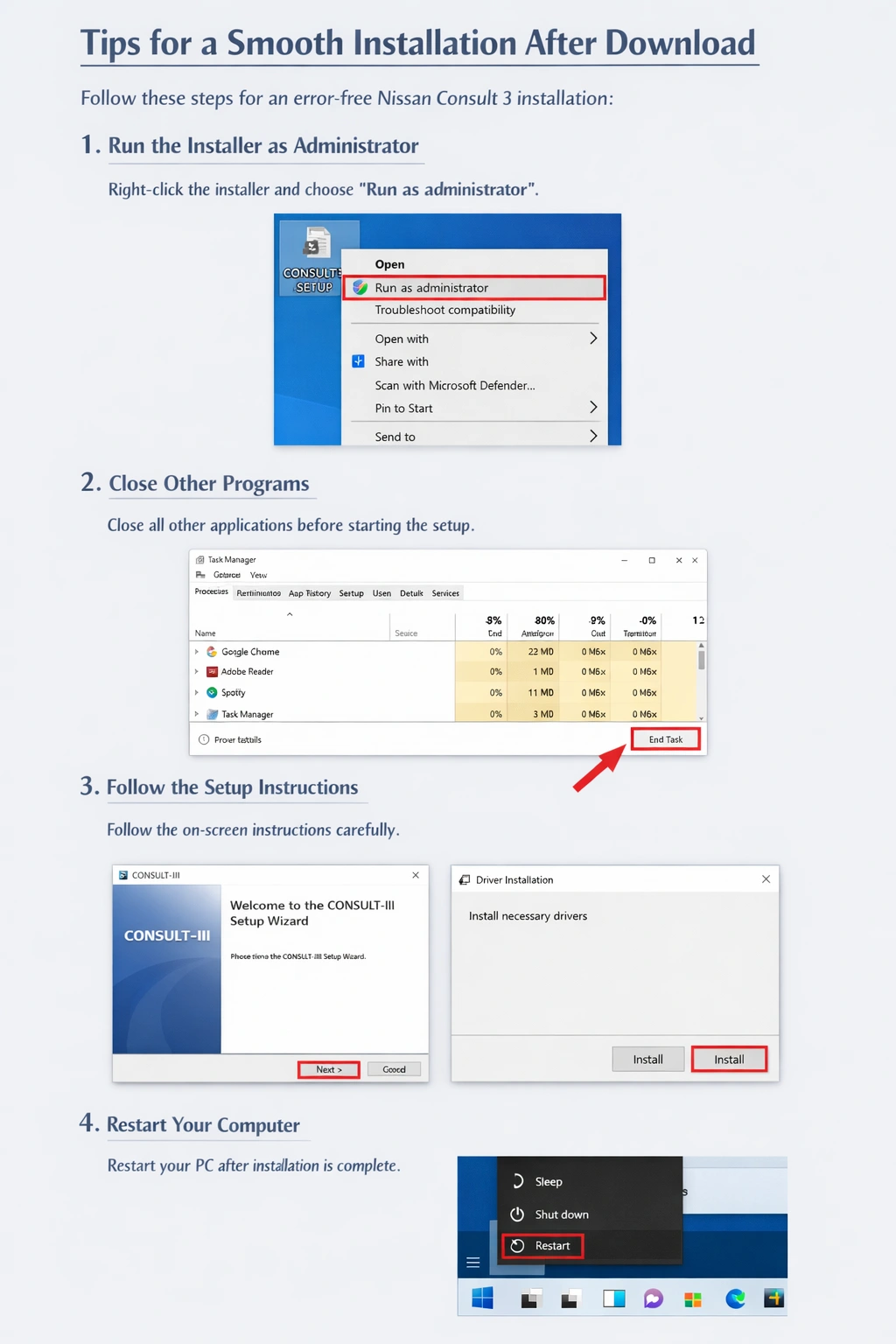
After the Nissan Consult 3 download is complete, proper installation is very important. A small mistake during setup can cause software errors or prevent the program from opening. Follow the steps below carefully to ensure a smooth and successful installation.
Step 1: Run the Installer as Administrator
Locate the Nissan Consult 3 setup file on your computer. This file is usually found in the Downloads folder or the location where you saved it.
Right-click on the setup file and select “Run as administrator.”
This step gives the installer permission to access system files and install required components.
If you skip this step, the installation may fail or stop midway. Running as administrator helps avoid permission-related errors.
(Screenshot shows right-click menu with “Run as administrator” highlighted.)
Step 2: Close Other Programs Before Installing
Before continuing, close all unnecessary programs running on your computer. This includes browsers, music players, and background applications.
You can open Task Manager and end unused tasks if needed. Closing other programs frees system memory and reduces the chance of conflicts during installation.
This step is important because Nissan Consult 3 needs enough system resources to install correctly.
(Screenshot shows Task Manager with “End Task” highlighted.)
Step 3: Follow the Setup Instructions Carefully
Once the installer starts, the setup wizard will appear on the screen. Read each instruction carefully before clicking “Next.”
Do not rush through the steps. When the installer asks to install drivers or additional components, always choose “Install.” These drivers are required for proper communication between the software and the vehicle.
Avoid changing default installation paths unless you clearly understand what you are doing. Default settings are usually the safest option.
(Screenshot shows Consult-III setup wizard and driver installation screen.)
Step 4: Do Not Interrupt the Installation Process
During installation, do not shut down your computer or force the program to close. Interrupting the process can cause incomplete installation or corrupted files.
Even if the installer appears slow, wait patiently until it finishes. Some steps may take a few minutes, especially driver installation.
Step 5: Restart Your Computer After Installation
Once the installation is complete, restart your computer. This step helps the system apply changes and properly load installed drivers.
Restarting ensures that Nissan Consult 3 works smoothly when you open it for the first time.
(Screenshot shows Windows restart option highlighted.)
Step 6: First Launch Check
After restarting, open Nissan Consult 3 using the desktop shortcut or Start menu. If the software opens without errors, the installation was successful.
If the program asks for permissions or driver confirmation during first launch, allow it. This is normal behavior
Final Thoughts
Facing a Nissan Consult 3 download stuck at 0 issue can be frustrating, especially when you need the software urgently. However, in most cases, the problem is caused by simple issues like internet instability, blocked permissions, incompatible systems, or corrupted files.
By understanding the causes and following the step-by-step solutions in this article, you can fix the problem and complete your download successfully. Taking a careful and patient approach saves time and prevents repeated errors.
With the right setup and preparation, Nissan Consult 3 can run smoothly and help you perform accurate vehicle diagnostics without trouble.